Platform Administrators have installation-wide authority. Use a personal account with two-factor authentication and grant scoped administration to other staff.
Sign in and navigate
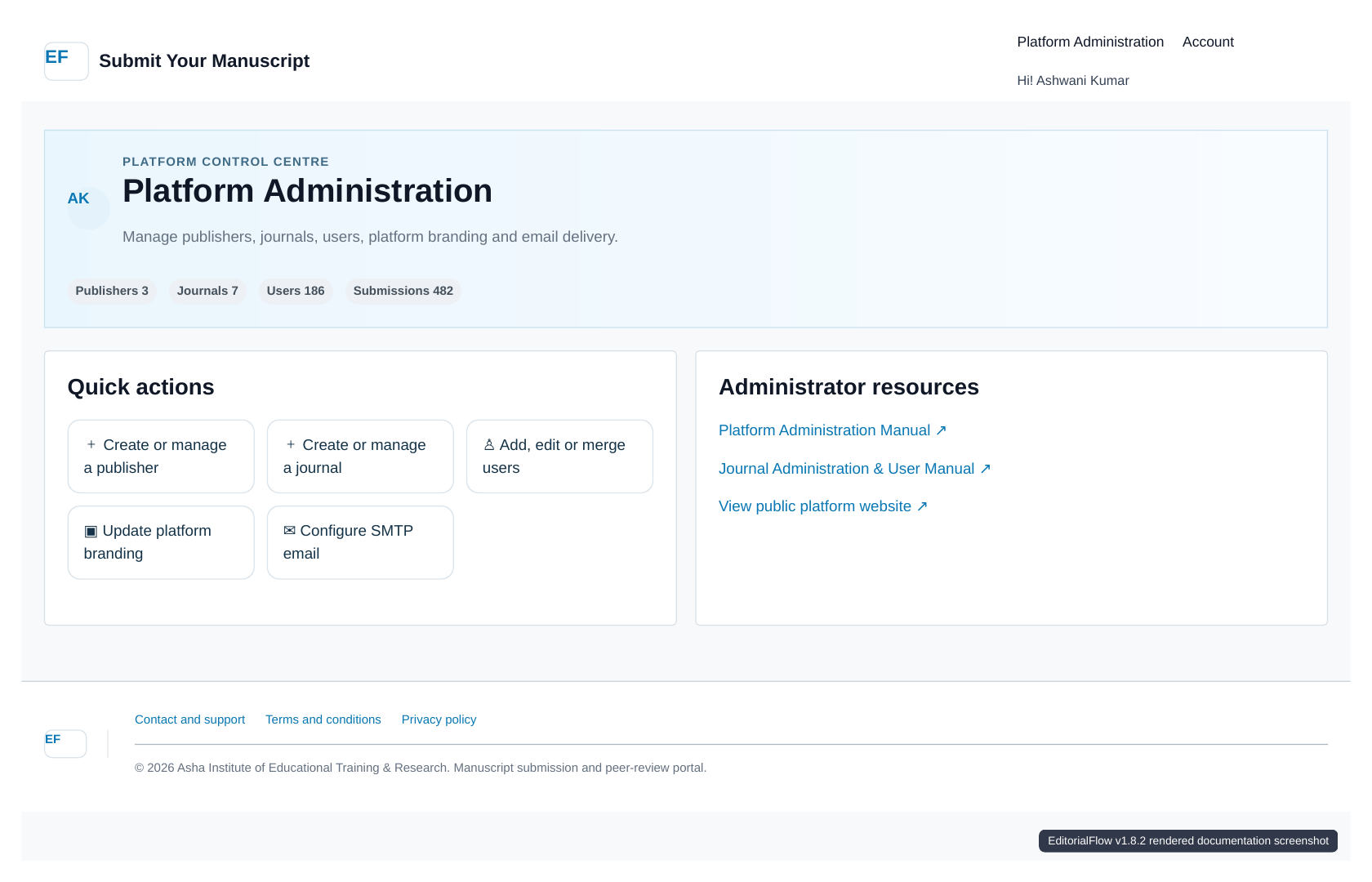
Open the platform’s /login page and select Platform Administration. The dashboard provides Publishers, Journal Management, Users & Accounts and Platform Settings.
Manage publishers
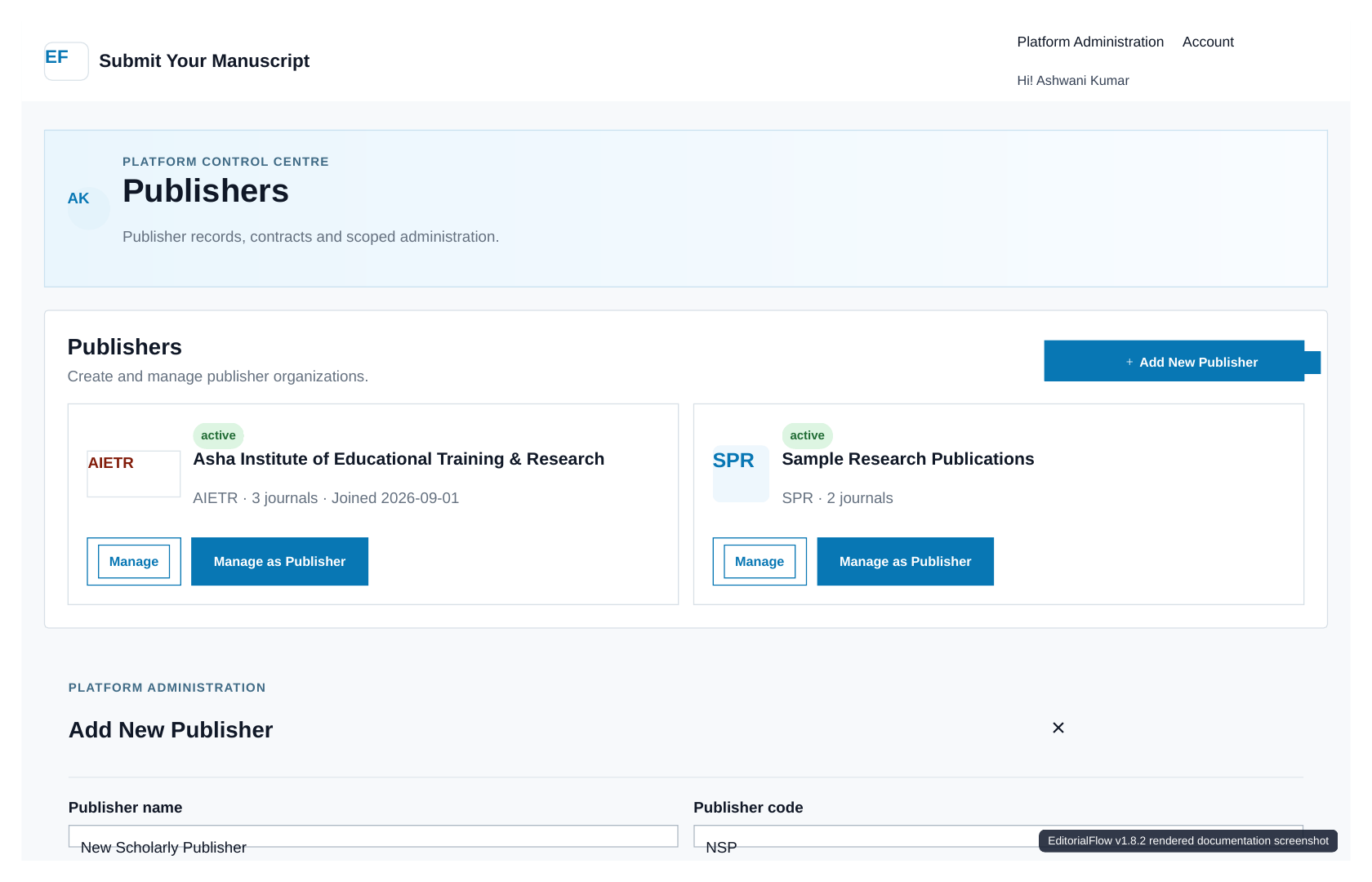
- Open Publishers and choose Add New Publisher. Enter the publisher identity, unique code and contact information.
- Use Manage to update the publisher record, administrator assignment, status and contract. Upload or replace the contract PDF only from this platform-level screen.
- Choose Manage as Publisher to open the publisher’s scoped administration tools. Return through the Platform Administration link.
- Use active/suspended status deliberately. Check associated journal access after any status change.
Journal management
Create journals under the correct publisher. Set the journal code, branding and status. Configure the monthly submission limit per journal: 0 means unlimited. Moving a journal changes its publisher scope and can change its URL; verify links and permissions afterwards.
Users and account security
Search by name or email before creating an account. Review identities carefully before merging duplicates: the retained account receives associated records. Reset two-factor enrollment only after verifying the account owner. Deactivate accounts when access is no longer needed.
Platform settings
Maintain platform logo/favicon, homepage content, support and legal links, theme and SMTP settings. For branded domains, enter the server origin IP and cPanel connection details. Test the connection before enabling provisioning. Existing encrypted credentials are retained when their replacement field is left blank.
Operational responsibilities
Schedule backups, review server errors, verify email delivery and maintain supported PHP and database versions. Follow the installation guide for releases and security guide for access controls.