Access and scope
Sign in through your publisher portal or the permitted platform sign-in page. Your membership controls which publishers you can administer. Platform Administrators can enter this area through Manage as Publisher.
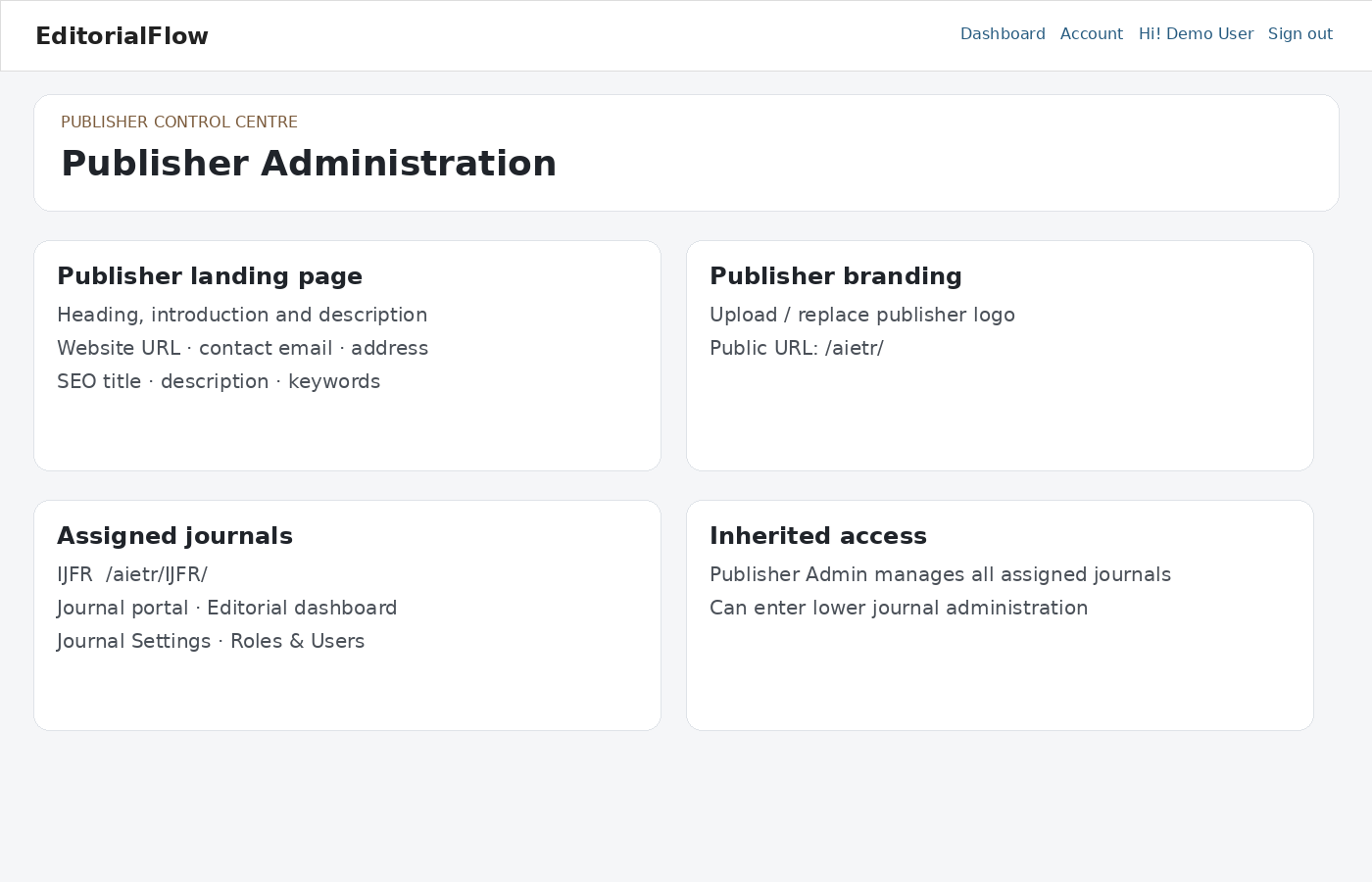
Publisher presentation
- Update the publisher name, contact details, website, address and logo.
- Write the landing introduction, About Publisher, Aim & Objectives and additional homepage content using the rich-text editor.
- Review theme colors, footer description and support/privacy/terms links. Open the public publisher page to verify the result.
Journal oversight
Open a journal from your dashboard to manage its settings, user access and editorial work within the publisher scope. Journal limits and publisher contract management remain platform responsibilities.
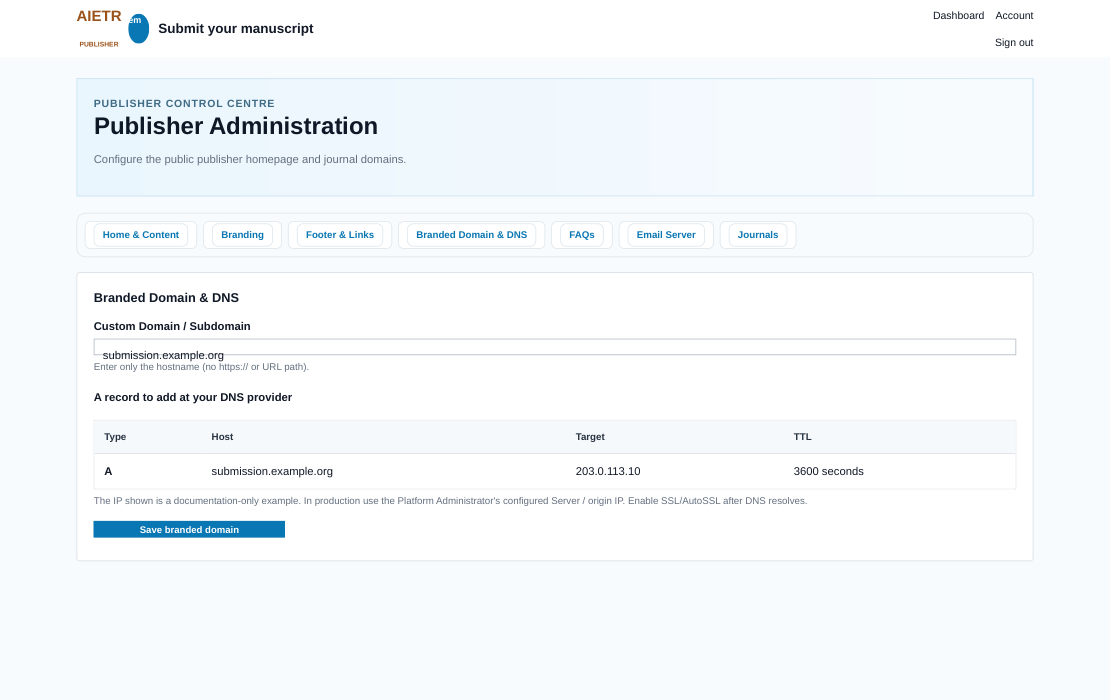
Branded Domain & DNS
- Enter the hostname only, such as
submission.example.org. Keep the global platform base URL unchanged. - Point DNS to the hosting origin and configure the domain to serve the application’s document root. Automatic alias creation depends on the platform’s cPanel setup and hosting permissions.
- Enable a valid HTTPS certificate for the hostname. Check the publisher homepage, journal portal, login, assets and documentation.
- A branded journal URL uses
https://submission.example.org/JOURNALCODE/. Without a branded domain, it uses the platform publisher path.
Retention and transfers
Review the publisher’s draft retention setting before enabling the daily scheduled task. A positive retention period permits deletion of inactive drafts older than that period. Enable journal transfers only when appropriate for the publisher. Transfers require eligible destination journals and author action; consult the author manual.